What this is for
The documents of your projects live in the toolkit. Another application of yours — an admin panel, an intranet, a documentation page — can ask the toolkit for one of them and show it on its own page. The people who open that page read the document without an account in the toolkit.
The other application asks with an API token, a different kind of token from the one your assistants use. An API token only works here, to list and read your documents; your assistants' tokens do not work here, and an API token does not work for your assistants. Nothing here can create, change or delete a document: this way in only reads.
1. Create an API token
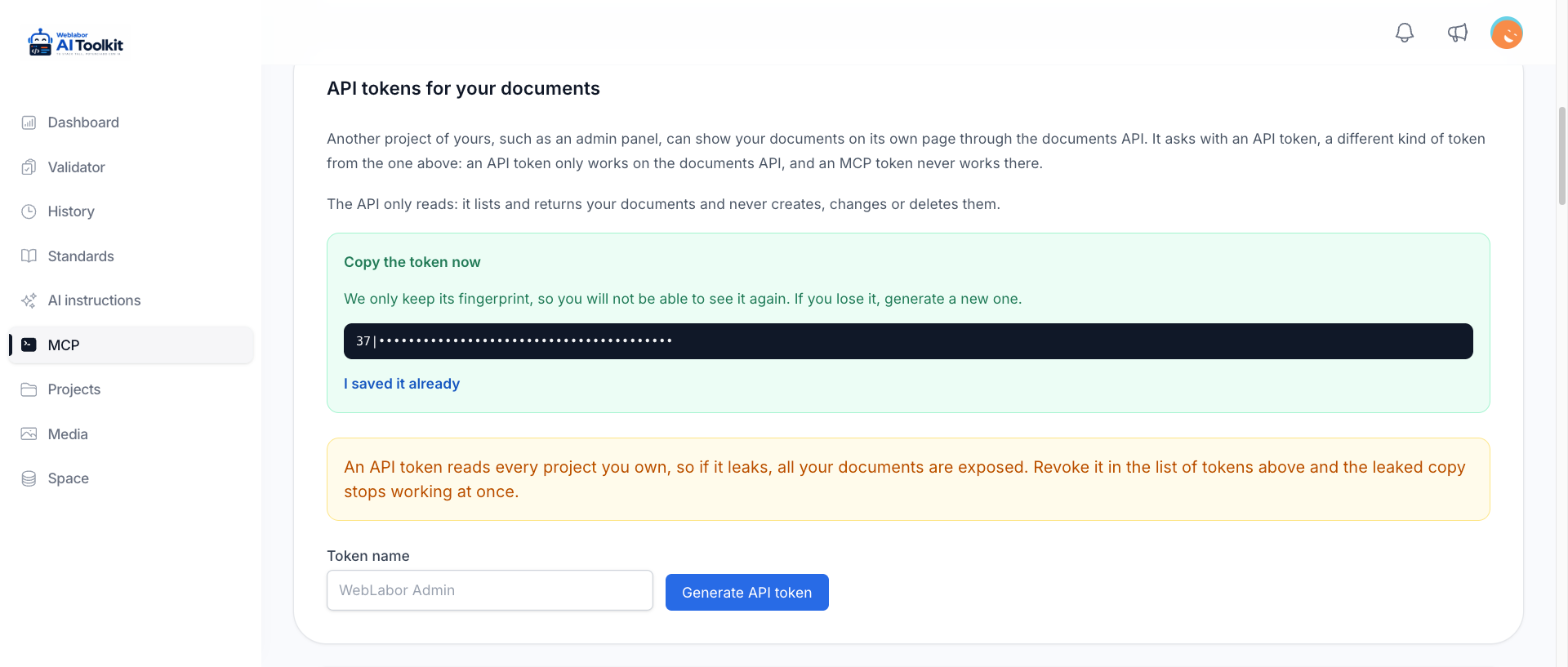
- Open MCP in the menu.
- Under API tokens for your documents, type a name — the application that will use it, for example
WebLabor Admin. - Press Generate API token and copy it. It is shown once.
The token list, under Your access tokens, marks it API, so you can tell it from the MCP tokens your assistants use.
An API token reads every project you own, not only one. If it leaks, all your documents are exposed. Keep it on the server of the other application, never in a page a browser downloads, and revoke it from the token list the moment you suspect it got out — the leaked copy stops working on its next call.
2. Ask for a document
Send the token in the Authorization header and name the project — the name of its repository folder — and the document's path inside it:
curl https://<your-toolkit>/api/projects/<project>/documents/<path> \
  -H "Authorization: Bearer <your-api-token>" \
  -H "Accept: application/json"
For example, /api/projects/weblabor-admin/documents/help/getting-started.md. A project name with spaces or other special characters goes URL-encoded: web%20labor.
3. What comes back
{
  "project": "weblabor-admin",
  "path": "help/getting-started.md",
  "number": null,
  "title": "Getting started",
  "status": null,
  "branch": null,
  "size": 1834,
  "created_at": "2026-10-01T15:20:11+00:00",
  "updated_at": "2026-10-12T09:02:45+00:00",
  "markdown": "# Getting started\n\n...",
  "html": "<h1 class=\"...\">Getting started</h1>..."
}
markdownis the document exactly as it is stored.htmlis the same HTML the Projects viewer shows, already rendered.titleis the first heading, or the file name when there is none.number,statusandbranchare filled in for the plans underanalysis/, andnullfor everything else.
List a folder
To build a menu or an index, ask for the documents of a folder:
curl "https://<your-toolkit>/api/projects/<project>/documents?folder=help" \
  -H "Authorization: Bearer <your-api-token>" \
  -H "Accept: application/json"
The answer holds project, folder, branch and a documents list with the path, number, title, status, branch, size and dates of each one — without their content. The folder includes its subfolders. Leave folder out for every document of the project.
Add branch to see a branch the way the viewer does: its own plans plus every document without a branch. Without branch you get all of them, whatever their branch.
The answers to expect
| Status | When | What to do |
|---|---|---|
200 |
The document, or the list. | Show it. |
401 |
The token is missing, wrong or revoked, or it is not an API token. | Check the header, or generate a new API token. |
404 |
The project does not exist, the document does not exist, or the project belongs to someone else. | Check the project name and the path. |
405 |
The request is not a read — a POST, PUT, PATCH or DELETE. |
Ask with GET: nothing here changes a document. |
Every error carries a message a person can read, always in English whatever language your toolkit is in, naming what was not found or why the token was refused. Every answer comes back as JSON, whether or not you send Accept: application/json. A project of another user answers exactly like one that does not exist, so a token never reveals whose projects are there.
Show it on a page
Fetch the document on your application's server, never from the browser, so the token stays out of the page. Then print the html:
$response = Http::withToken(config('services.toolkit.token'))
    ->acceptJson()
    ->get("https://<your-toolkit>/api/projects/weblabor-admin/documents/help/getting-started.md");

if ($response->successful()) {
    echo $response->json('html');
}
The HTML carries the Tailwind classes of the viewer. If your application uses Tailwind, the document looks the same as in the toolkit; if it does not, style the tags yourself or render markdown with your own Markdown library.
The code blocks come in the html with their dark background but without the colours of the syntax: the viewer colours them in the browser with highlight.js once its page loads, so that colour is never part of the html. For the same result, load highlight.js — or another highlighter — on your page and apply it to the pre code blocks; hljs.highlightAll() does exactly that.
Next
- Your projects and their documents — where the documents come from.
- Keep your tokens safe — rotating and revoking.