
Where the documents live
The documents your assistants keep for a repository — the plans, the business analyses, the vision and the pending findings — live in the toolkit, not in your repository. Writing a plan or changing its status never becomes a commit, two people planning at the same time never get the same number, and every computer that uses your token sees the same documents.
Each repository is a project, named after the repository folder. You do not create it: it appears the first time its name is used — by a command, even only to list its documents, or by a code check that names it. A check without a project creates none. Only you see your projects.
Your developer documentation and your user guides are not affected. They stay in the repository, on their branch, as before.
If the toolkit is not connected, planning, running the queue and writing the vision stop and tell you, since their work is these documents. Building stops too, whether or not a plan was saved, because the code check runs on the same server. A command that keeps working without it, such as a review or a cleanup, carries on and names in its report the pending findings it could not write. None of them writes these documents into your repository instead.
Browse a project
Open Projects in the sidebar and choose one. You see its folders and files the way a repository browser shows them, with the path at the top so you can step back up:
analysis/holds the plans and the business analyses, numbered.vision.mdandtodos.mdsit at the top of the project.- Any folder you created, with the files you uploaded to it.
Every folder below the top of the project starts its listing with a .. row: it takes you up to the parent folder and keeps the branch you chose.
Open a document to read it rendered, with its status, its branch, when it last changed and its size beside the name, and its Edit and Delete buttons. Its folder's listing stays on the left, in a narrow column with the document marked and long names wrapped, and the content takes the rest of the width, so you can move to the next file without stepping back. On a phone the listing sits above the content.
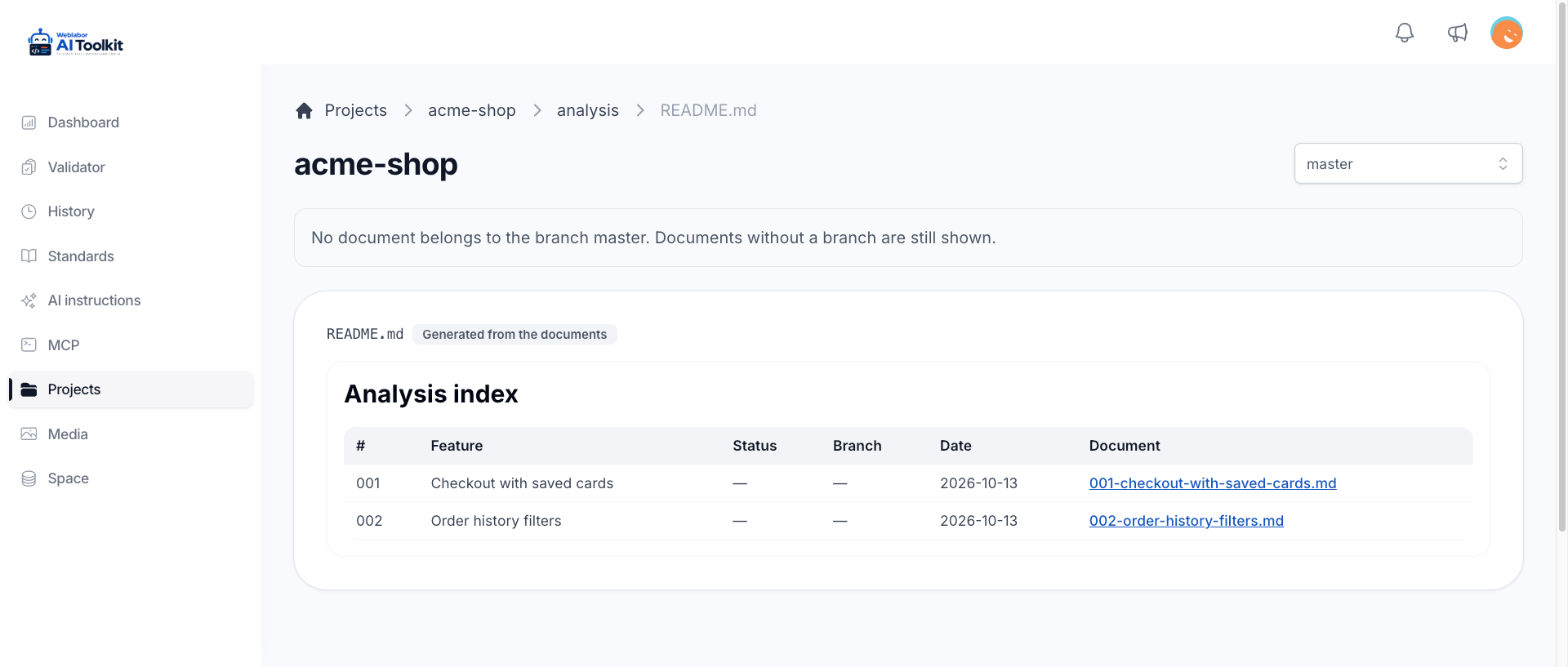
A folder with an index.md, or else a README.md, opens that index the same way, on the right of its listing, so the folder explains itself as soon as you open it. The name is matched without regard to capitals, only Markdown files count, and the one shown is the one of the branch you chose. A folder with neither shows its listing across the full width. analysis/ shows its generated index on the right, without Edit or Delete, unless you gave it an index.md of your own.
A link inside a document to another Markdown file, such as ../vision.md or designs/login.md, opens that file here. It is read from the folder the document sits in, also when the document is shown as its folder's index, and it keeps the branch you chose.
An image in the listing opens in a viewer over the same screen, together with the other images of its folder: step through them with the arrows or the thumbnails, and close the viewer to go back to the listing. PDFs and other files open in a new tab.
You can upload files, create folders and delete what you no longer need. Deleting asks first. To upload, drop one or several files on the upload box under the toolbar, or click it to choose them: each file is saved into the folder you are viewing as soon as it finishes, with no button to press. Each file can weigh up to 100 MB; a bigger one is refused with a message saying how much it weighs and what the maximum is.
Edit a document
Most documents are written by the commands, but you can change any of them here — a plan, the vision, the pending findings, an internal command or one you uploaded. Open it and press Edit: its Markdown opens in a text field. Save keeps the change and shows the document again; Cancel leaves it as it was. Its branch and its status do not change.
- If a command changed the document while you were editing it, saving warns you and overwrites nothing. Copy your text, reload the page and apply it again.
- An empty document cannot be saved.
- A change that makes the document bigger than the space your account has left is not saved either: the message says You have run out of space. Free some up by deleting files you no longer need, or buy more space, and save again.
- The index of
analysis/is calculated from the plans, so it has no Edit button.
Choose a branch
Each plan remembers the branch it was planned on. The selector at the top of the project chooses which branch you are looking at:
- master is where you start.
- Each branch that has plans appears in the list.
- All branches shows everything.
Documents without a branch — business analyses, the vision, the pending findings and whatever you uploaded — are shown on every branch. If the branch you chose has no plans of its own, the screen says so.
/next follows the same rule: it only runs the plans of the branch you are on. A plan does not move to another branch on its own, not even when its branch is merged; it moves only when you ask your assistant to move it.
The index of the analysis folder
Inside analysis/ there is always a README.md. Nobody writes it: it is worked out from the documents every time you open it, and it is shown on the right of the folder's listing. It is a table with the number, the feature, the status, the branch, the date of the last change and a link to each document, for the branch you chose and the documents without one.
Delete finished
Also inside analysis/, Delete finished cleans up the plans that are done:
- Choose the branch to clean, or All branches for the whole project.
- Press Delete finished.
- Read the confirmation. It says how many documents will be deleted and how many plans, on other branches included, will change number.
- Confirm.
When the branch you chose has no plan marked implemented or rejected, pressing the button only says Nothing to delete, and nothing changes.
It deletes the plans marked implemented or rejected. It never deletes a business analysis, and never a plan that another remaining plan depends on. What is left of the project is then numbered again from 001, in its current order, and every reference to a number that moved — file names and the lines saying which document a plan depends on — is rewritten in the same step.
Use it only when no assistant is building a plan of the project: a build that is running carries its plan's number, and renumbering under it points the build at another document. If a plan still shows as in development because a run was interrupted, the button cannot tell it from a build that is running: ask your assistant to move its status first, then delete. /next never does this for you; ask it during a run and it points you here.
/finish recognises a plan's commits by the plan's number, and renumbering does not change the commits. A renumbered plan whose own commits carry its old number, and whose new number no commit on your main branch carries, is kept by /finish: you delete it by hand once its code is on your main branch. And a plan renumbered onto a number whose earlier holder has commits on your main branch, made after the plan was created, can be deleted by /finish once it is implemented, before its own code merges.
Add a document of your own
Upload a Markdown file, such as a brand manual, into any folder — brand/, for example. Then name it in the command that needs it: "use brand/manual-identidad.md as the brand seed". The command reads it by that name inside the project.
Uploading a .md with a name that already exists in that folder asks whether to replace the document. Replace changes only its content and keeps its branch, status and number; Cancel uploads nothing. A name that is not allowed, or one that repeats the number of another plan in analysis/, is refused with a message saying why.
Images, PDFs and other files work the same way: uploading one with a name that already exists in that folder asks whether to replace it. Replace keeps the file you just uploaded in place of the old one; Cancel uploads nothing and leaves the old file as it was.
Your assistant can upload these files too — a brand manual in PDF or a logo for /design-catalog, for example — and they show in the listing like any other. It does not ask before replacing: a file with the same name in that folder is replaced, and your assistant is told so. A large image is scaled down when it is uploaded, by your assistant or here, except in the identity/ folder and the folders inside it, where every file is kept exactly as it arrived. A file over 20 MB cannot go through your assistant: upload it on this page instead.
Uploaded documents and files count against your account's space, the same as the files in your media library.
Next
- Planning before building — where the plans come from.
- Run the queue with /next — how the ready plans of your branch are worked through.
- Pending findings — what
todos.mdholds.