
Your media library holds the files of your account, in folders you organise yourself. Open Media in the sidebar. Your profile picture lives here too, in the Profile folder, put there when you upload it from Manage profile.
The documents and files of your projects are not in this library: they are kept with each project, in Projects. Both count against the same space.
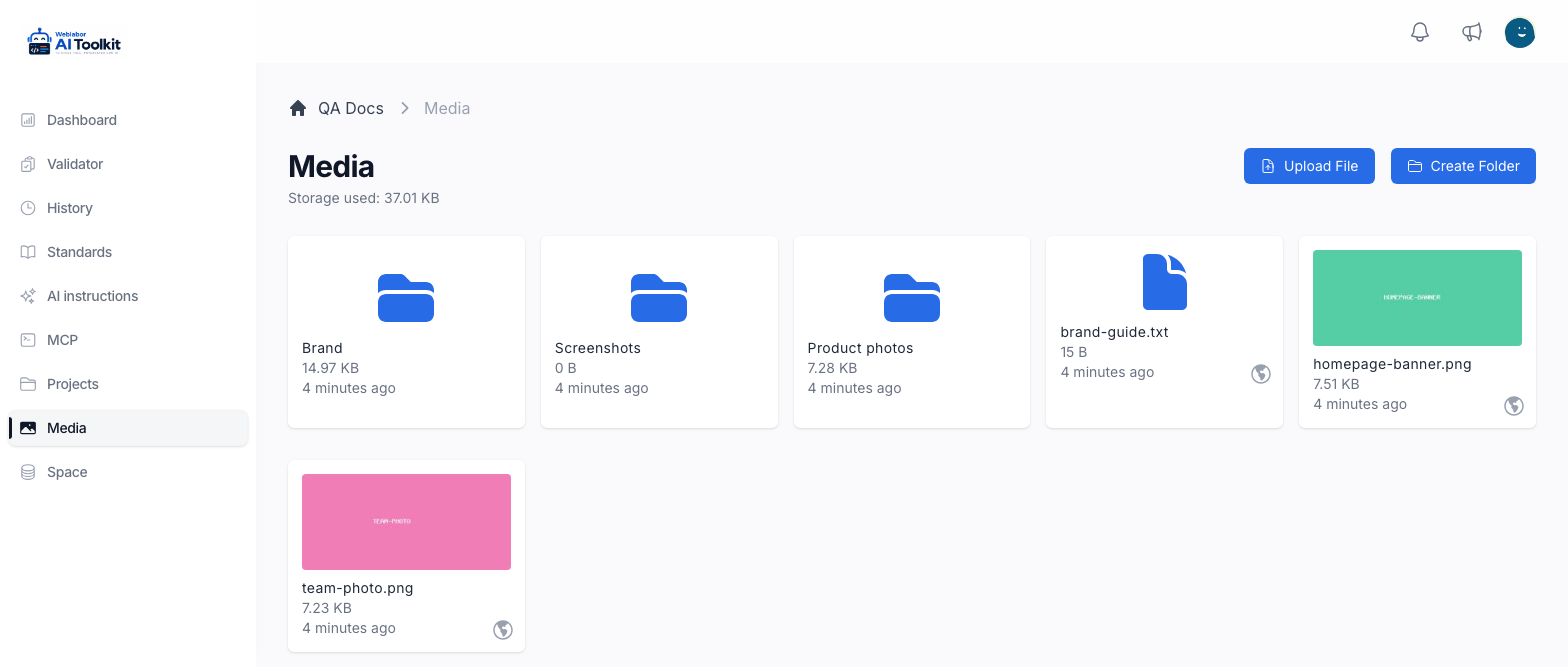
Find your way around
The page opens on your top folder, titled Media. Under the title, Storage used says how much the folder you are in takes up. Each folder and each file shows its size and how long ago it was added.
- Double-click a folder to open it. The path above the title takes you back up.
- Double-click a file to open its details.
- Click a folder or a file to select it: its actions appear at the top right. Right-click it to get the same actions next to the pointer. On a small screen the buttons show their icon only.
| Selected | Actions |
|---|---|
| A folder | Open folder, Edit, Copy Path, Delete |
| A file | Details, Edit, Copy URL, Delete |
Upload files
Press Upload File and choose one or more files, or drag them onto the page and drop them. Each one goes into the folder you are in.
The Upload queue in the corner shows each file's progress. You can minimise it while it works, cancel a single file, or press Cancel all. A file that finishes says File uploaded! and leaves the queue after a few seconds.
A file is refused with File not uploaded and the reason when:
- it weighs more than 110 MB — the message gives its size and the maximum;
- your account has a space limit and the file does not fit in what is left — the message says You have run out of space.
An image larger than 2000 pixels on either side is scaled down to fit, keeping its proportions. Each image gets smaller copies made from it; if they could not be made, its tile says The copies of this file could not be generated, and the file itself is still there.
Create a folder
- Press Create Folder.
- Write its Folder Name: 2 to 60 characters, made of letters, numbers, spaces, hyphens, underscores, parentheses,
&and+. - Press Create.
The folder is created inside the one you are in. Two folders in the same place cannot share a name: A folder with that name already exists here.
A file's details
Details shows a preview of the file, a link to Open file in new tab, its Name, its Size and its File type. For an image, Sizes lists the smaller copies made from it, each with its measure and its weight and a link to Open this size. Those copies count in the size of the image.
Copy URL copies the address of the file, to paste wherever you want to show or share it.
Rename or move
Edit on a file opens Edit File: change its Name (the extension stays as it is), choose another folder under Path to move it there, and add a Description if you want one. Press Edit to save. Renaming a file does not change its address, so a link you already shared keeps working.
Edit on a folder opens Edit Folder, with its Name and its Path. A folder cannot be moved inside itself or inside one of its own folders.
Delete
Delete asks Are you sure? before doing anything; press Confirm to go ahead.
- Deleting a file removes it from wherever it was used. If it was your profile picture, your profile goes back to the default picture.
- Deleting a folder deletes everything inside it, folders and files alike.
Neither can be undone. Deleting is what frees your file space; see how much you have left in Your space.
Next
- Your space — how much your files take up, and the rest of your account.
- Your profile and language — the profile picture that is stored here.