
Every validation run is kept, from the web validator and from your AI client alike. Open History in the sidebar to get back to one with its code, its findings and its verdict exactly as they were.
You see your own runs and nobody else's.
Find a run
The list on the left holds the latest validations, newest first and split by day, with Today and Yesterday named rather than dated. Each entry shows the file, the time, and where the run came from. Show more loads another page of them.
The filter above the list matches the project, the file name, the path and the validator, so typing part of a file name is usually enough.
Selecting a run puts it in the page address. You can leave the page and come back to the same run with the link, and reload without losing your place.
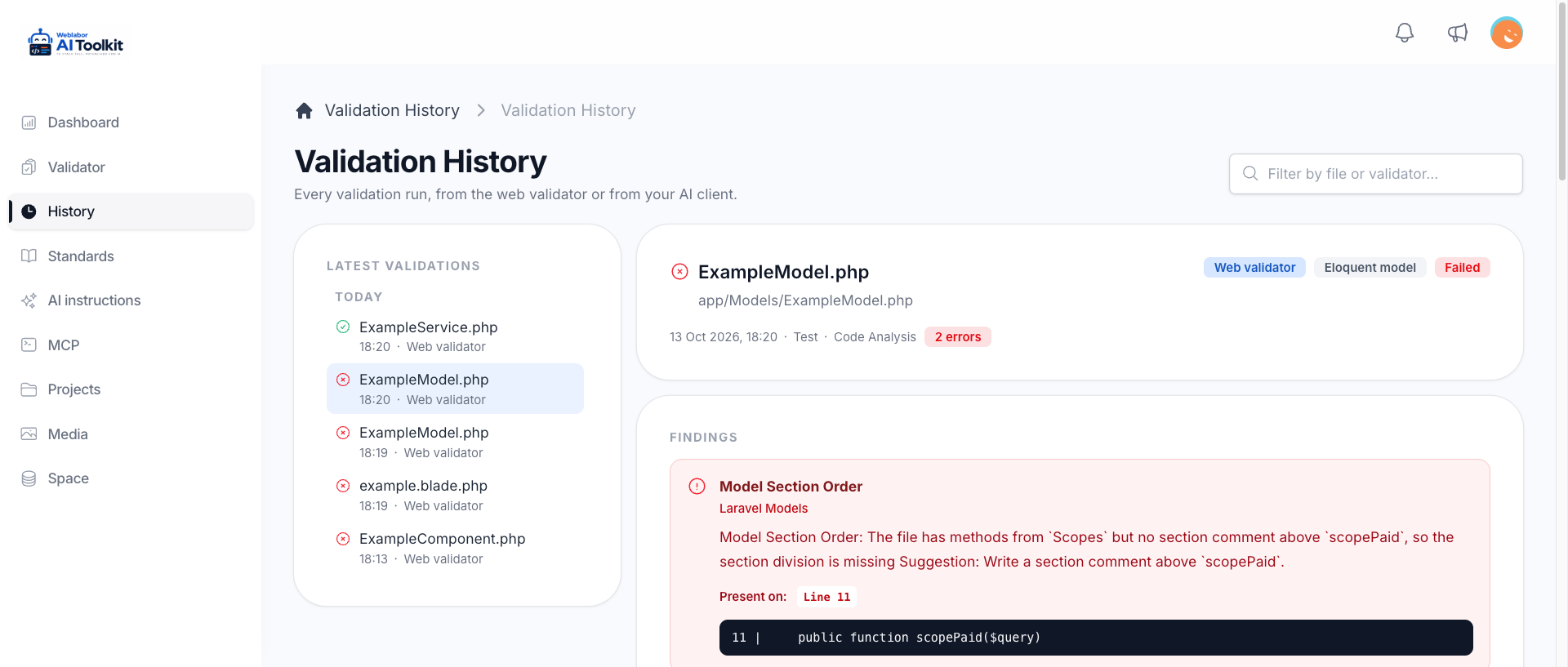
What a run shows
| Section | What is in it |
|---|---|
| The header | The file name and its path, the file type, when it ran, who ran it, which validator, how long it took, and the number of errors and warnings |
| Findings | Every rule that reported, with its lines and the offending code. Read a finding |
| Validated code | The file as it was analysed, numbered, with every flagged line marked in place and coloured by its severity |
| Rules executed | Every rule the run applied, grouped by standard, whether it passed or not. Open one to see what it decided |
| Previous runs of this file | Earlier runs of the same file, so a fix can be compared against what came before it |
Rules executed is the section that answers "was this even checked?". A rule that does not appear there did not apply to this file type, and a rule that appears and passed is a rule that ran and found nothing.
Where a run came from
| Source | What started it |
|---|---|
| Web validator | Someone pasted the file into the Validator screen |
| MCP | An assistant sent the file over the connection |
| Background job | The run was started by the server rather than by a person |
| Legacy | The run was recorded before the platform stored where a run came from |
Both routes are described in Analyse a file.
A run that never finished
A run finishes inside the request that started it, so one still marked as running means that request died. There is nothing to wait for. Opening it closes it and tells you so: validate the file again to get its results.
Using the history on a fix
The useful comparison is not between two files but between two runs of the same file. Fix what the findings named, run the file again, and open the new run: Previous runs of this file puts the old one one click away, and the two finding lists say whether the fix closed what it was meant to close and whether it opened anything new.