
There are two ways to get a file checked: paste it into the Validator, or let your assistant send it. Both run the same rules, return the same verdict, and land in the same history.
From the platform
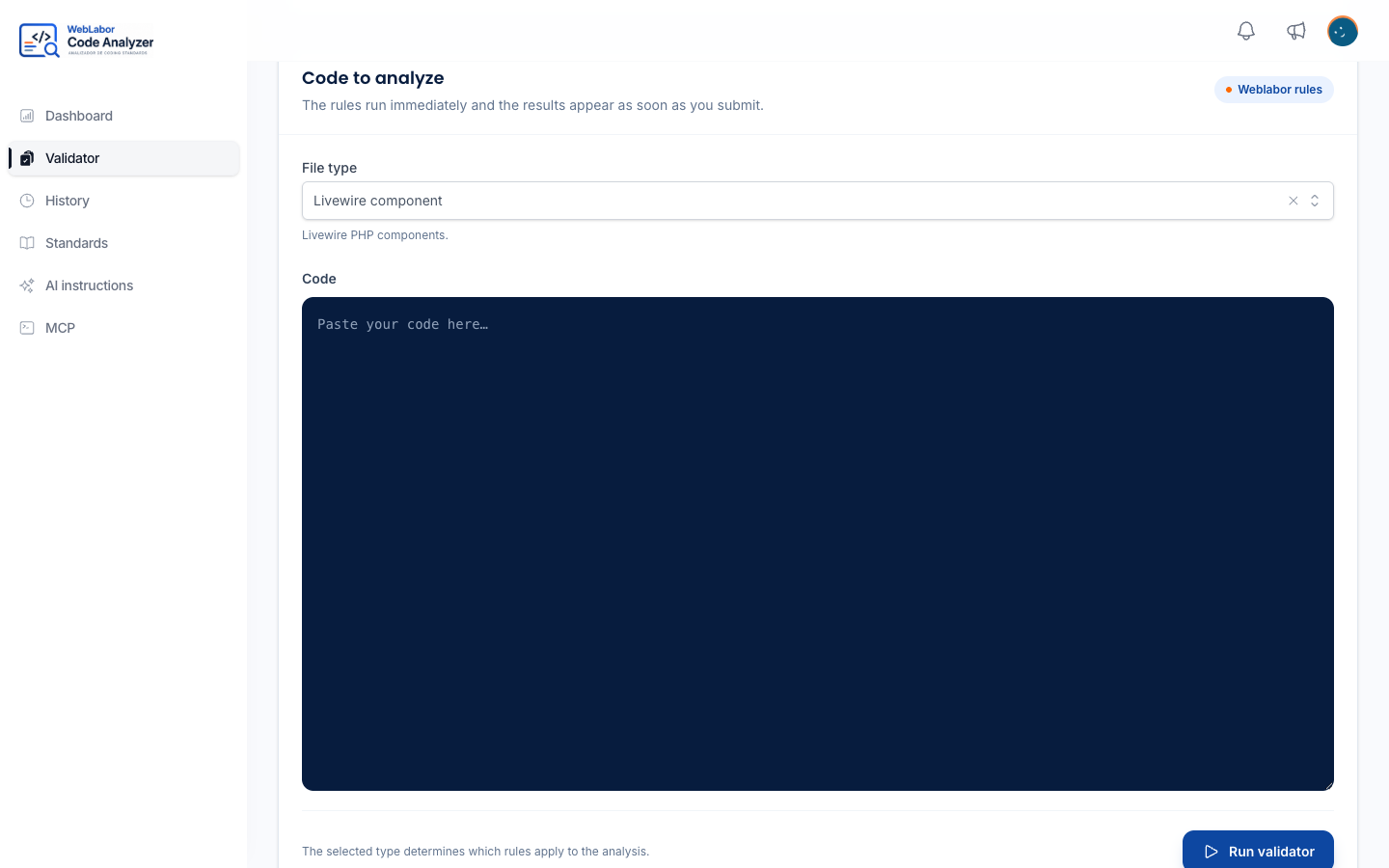
Open Validator in the sidebar.
- Choose the File type. This is what decides which rules apply, so a Livewire component checked as a plain PHP file is checked by fewer rules than it should be.
- Optionally, write the Project: the name of the repository folder the file comes from. A run without one is recorded without a project.
- Paste the file into Code. One file per run.
- Press Run validator.
The rules run immediately and the results appear below as soon as the run finishes. Reading what comes back is covered in Read a finding.
These are the types you can choose from:
| File type | What it is for |
|---|---|
| PHP file | Classes, services, models and general PHP code |
| Eloquent model | Laravel Eloquent models |
| Livewire component | Livewire PHP components |
| Blade file | Blade views and components |
| Tailwind / Alpine | Blade markup with Tailwind classes and Alpine directives |
The Validator is the quickest way to settle a question about a single file — a snippet somebody sent you, a file you are about to copy from another project — without connecting anything first.
From your assistant
An assistant with the toolkit installed calls the analyzer itself, with the file's path, its complete current contents and the project — the name of the repository folder. It does this on its own after writing a file, and you can also ask for it directly: tell it to check the file against the standards.
The path is what tells the analyzer which rules apply, so the assistant sends the real path inside the repository. The server never reads your disk — it works from the text it was given, which is why the contents have to be the current ones and not what was on disk before the last edit.
If nothing is connected yet, start with Install the toolkit and Connect Claude Code.
What one run covers
A run looks at one file and reports what it can prove from that file alone. It does not open the files around it, so anything that depends on what else exists in the project is outside what a run can answer: What the analyzer cannot check.
Within that limit the verdict is the same everywhere. The platform and your assistant run the same rules over the same file, so a file that passes in one passes in the other.
After the run
Every run is saved, whichever way it was started, and you can go back to it with the code and the findings as they were: The analysis history.
A file that comes back with errors is worth running again after the fix, rather than assumed correct. The second run is what closes the first one.
How much each project is analysed
The dashboard, the first screen of the workspace, counts your runs. Choose By project under Metric to see them grouped by project, and use Project to keep the figures of one project only. Runs that never named a project — every run made before projects were recorded, and any assistant that does not send one — gather under No project. The dashboard only ever counts your own runs. What else it shows is in The statistics dashboard.