
Get your token first — see Get your access token. You need it in hand, because it is shown only once.
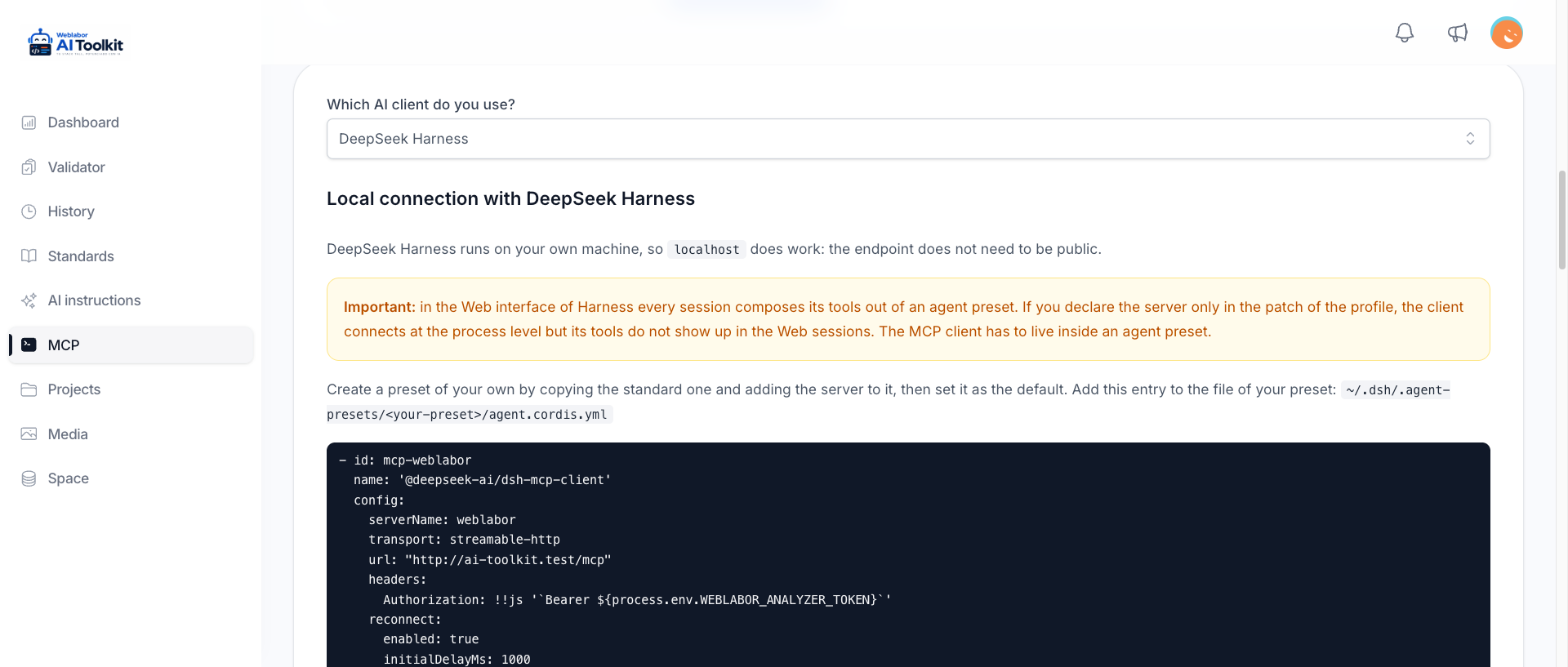
On the MCP page, pick DeepSeek Harness under "Which AI client do you use?". The page then shows the endpoint URL of this server, ready to copy.
Harness runs on your machine, so localhost works here: unlike Claude's remote connectors, the endpoint does not have to be public or HTTPS.
The one thing that is different here
On the Harness Web surface, each session composes its tools from an agent preset. If you declare the server only in the profile patch (~/.dsh/profiles/web/cordis.patch.yml), the client connects at the process level but its tools never reach your Web sessions. The MCP client has to live inside a preset.
Declare it in one place only. A client declared in both the profile patch and the preset gives you a second instance that connects without ever surfacing in a session.
1. Put the token in the environment
Harness reads this at launch, so the token never gets written into a config file. Add it to ~/.dsh/.env:
WEBLABOR_ANALYZER_TOKEN="<your-token>"
2. Copy the shipped preset into one of your own
Harness reads user presets from ~/.dsh/.agent-presets/. Copy the standard preset rather than editing it — the shipped one is overwritten on every Harness update.
mkdir -p ~/.dsh/.agent-presets/standard-weblabor
cp \
  ~/.npm/_npx/*/node_modules/@deepseek-ai/dsh/config/agent-presets/standard/agent.cordis.yml \
  ~/.dsh/.agent-presets/standard-weblabor/agent.cordis.yml
3. Add the server to your preset
Append this row to ~/.dsh/.agent-presets/standard-weblabor/agent.cordis.yml:
- id: mcp-weblabor
  name: '@deepseek-ai/dsh-mcp-client'
  config:
    serverName: weblabor
    transport: streamable-http
    url: '<the endpoint the MCP page shows>'
    headers:
      Authorization: !!js '`Bearer ${process.env.WEBLABOR_ANALYZER_TOKEN}`'
    reconnect:
      enabled: true
      initialDelayMs: 1000
      maxDelayMs: 30000
      maxAttempts: 30
The generous reconnect budget is what keeps the client alive when the server is still starting up at login. On the default budget the attempts can run out, and the client then stays dead until a restart — which is what the MCP "disappearing" every time you close and reopen Harness actually is.
4. Make it the default preset
Point Harness's default at your preset in ~/.dsh/settings.yaml, so every new session mounts it:
agent-presets:
  default: standard-weblabor
5. Open a new session
Harness re-reads presets without a restart, but sessions that are already open keep the preset they were created with. Open a new one to see the tools.
Check the connection
In the new session, ask the assistant for list_rules. It should come back with the configured rules, which confirms both that the token works and that the analyzer is set up.
The tools arrive prefixed with the server name — mcp__weblabor__validate_code, mcp__weblabor__get_standard, and so on. Your assistant recognises them by their real name, so do not change serverName after connecting.
To test the token before setting any of this up, run this in your terminal. The response contains serverInfo:
curl -X POST <the endpoint the MCP page shows> \
  -H "Authorization: Bearer <your-token>" \
  -H "Content-Type: application/json" \
  -d '{"jsonrpc":"2.0","id":1,"method":"initialize","params":{}}'
When it does not connect
| What you see | Cause | Fix |
|---|---|---|
| The client connects but no session sees its tools | the server is declared in the profile patch instead of a preset | move the mcp-weblabor row into the preset and create a new session |
No mcp__weblabor__* tool in a new session |
the row is missing from the preset, or the session predates the default change | check steps 3 and 4, then open another session |
| Harness will not boot: "must be a top-level YAML array of loader patch entries" | ~/.dsh/profiles/web/cordis.patch.yml was cleared, and a file of only comments parses as empty |
write [] in it |
Next
Install the toolkit — the agents and commands land under ~/.dsh, written by the assistant itself.