Every call to the server carries a token. There is no anonymous access, so this is the first thing to do — before connecting any client.
1. Create your account
Open Register and sign up. You confirm your email address before the account is created, so watch for the message; the account exists once you have confirmed. If you already have an account, sign in.
2. Open the MCP page
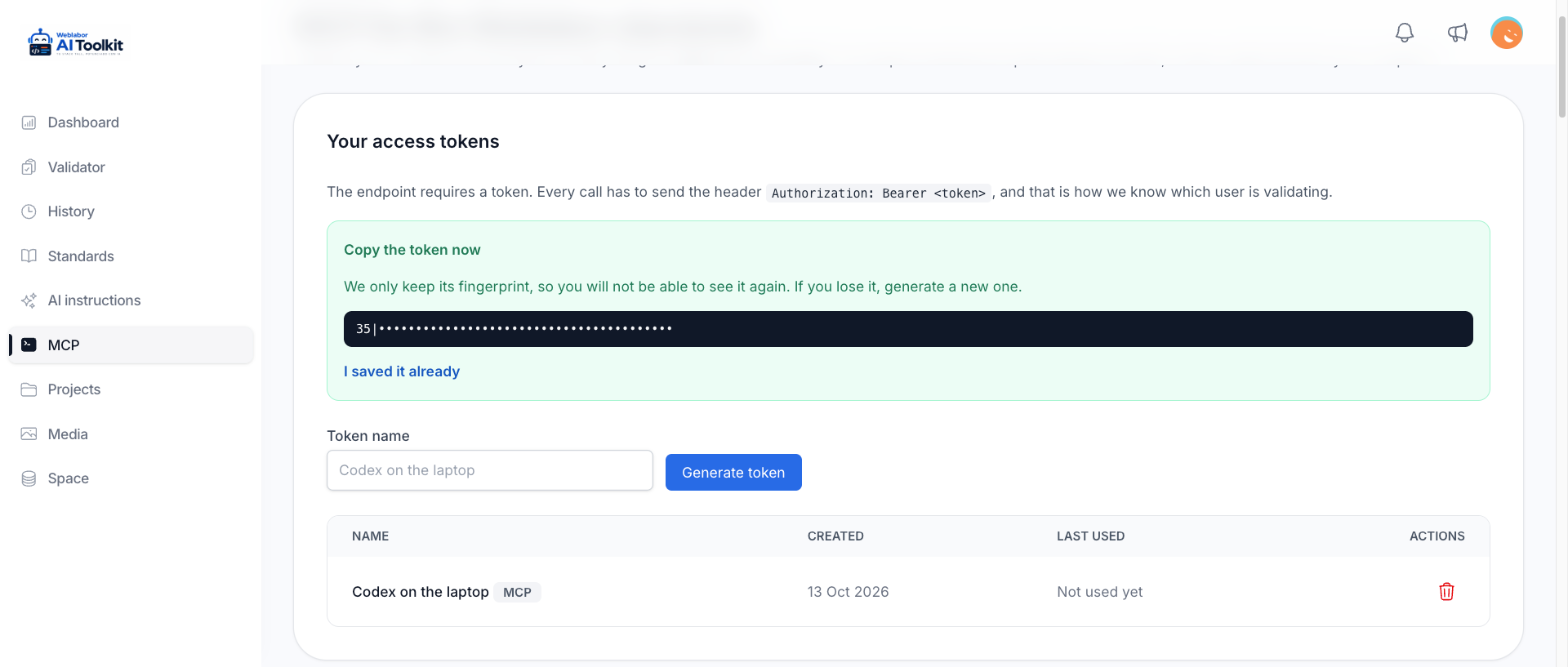
In the menu, open MCP. It is the page that holds your tokens, the configuration for each client, and the list of tools the server exposes.
3. Name a token and generate it
Type a name and generate the token. The name is only for you — it is how you recognise the token in the list later, so name it after the machine and the client that will use it, for example Codex on the laptop.
Generate one token per client, or per machine. That way revoking one does not take the others down with it.
The tokens of this section are MCP tokens, the ones your assistants use. The page has a second section, API tokens for your documents, for a different kind of token: the one another application of yours uses to show your documents on its own page. Each kind only works for its own purpose — an API token does not connect an assistant, and an MCP token does not reach the documents API. See Show your documents in another project.
4. Copy it before you leave the page
The token is shown once. Only its fingerprint is stored, so it cannot be recovered afterwards — if you lose it, generate another one.
Treat it like a password. It is your access to the analyzer, and every run is recorded under your name. It also reads, changes and deletes the documents of every project you own: plans, vision, pending findings, internal commands and working documents. And it uploads, reads and deletes the other files of those projects, such as a PDF or a logo.
Check that it works
You can test the token from your terminal before configuring anything. The MCP page shows this command with your own endpoint already filled in. The response contains serverInfo:
curl -X POST <the endpoint the MCP page shows> \
  -H "Authorization: Bearer <your-token>" \
  -H "Content-Type: application/json" \
  -d '{"jsonrpc":"2.0","id":1,"method":"initialize","params":{}}'
A call with no token, with a token that was revoked, or with an API token, comes back as a JSON-RPC error with code -32001. In your AI client that shows up as the tool failing.
Your tokens in the list
Each token in the list shows the name you gave it, when it was created, and when it was last used — or that it has not been used yet, which is the quickest way to tell that a client never actually connected. Each one is marked MCP or API beside its name, so you can tell what it is for.
Revoking a token
Revoke removes it immediately. Any AI client still using that token loses access on its next call, so generate and configure the replacement before revoking the one in use. If a token ever leaks, revoke it and generate another.
Next
Connect your client. Seven of them have a guide of their own, from Claude Code and Codex to Cursor and Gemini CLI; they are all listed under Your AI assistant.