
Get your token first — see Get your access token. You need it in hand, because it is shown only once.
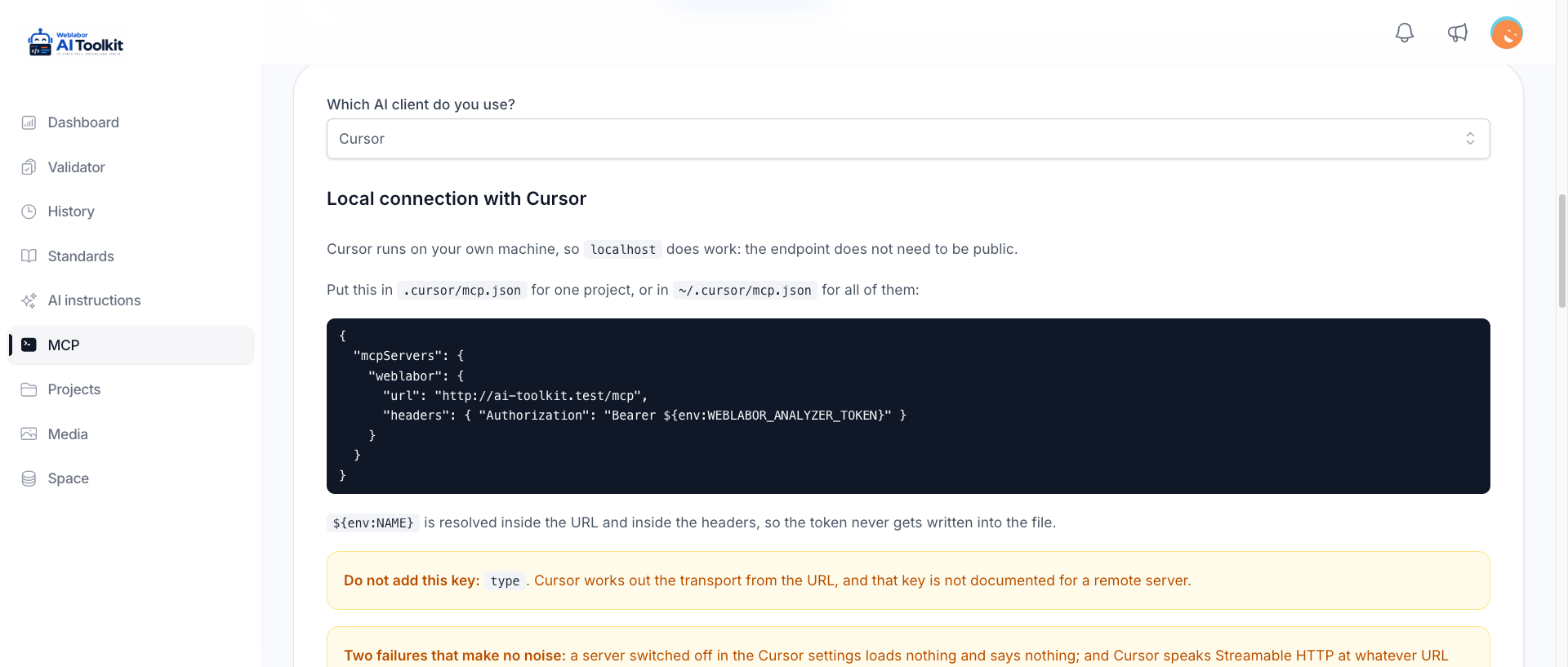
On the MCP page, pick Cursor as your client. The page then shows the endpoint URL of this server, ready to copy.
Cursor runs on your machine, so localhost works here: unlike Claude's remote connector, the endpoint does not have to be public or reachable from the internet.
Add the server
Write this in .cursor/mcp.json for one project, or in ~/.cursor/mcp.json for every project on this machine:
{
  "mcpServers": {
    "weblabor": {
      "url": "<the endpoint the MCP page shows>",
      "headers": { "Authorization": "Bearer ${env:WEBLABOR_ANALYZER_TOKEN}" }
    }
  }
}
The token is not written into the file. Cursor resolves variables in url and headers, so ${env:WEBLABOR_ANALYZER_TOKEN} picks it up from the environment Cursor was started in:
export WEBLABOR_ANALYZER_TOKEN="<your-token>"
There is no type key here
Cursor works out the transport from url, and does not document a type for a remote server. The two keys above are all one needs. A type copied in from a VS Code or Claude Code snippet, where it is required, does not belong here — leave it out.
The URL is used exactly as given
Cursor speaks Streamable HTTP at the address you hand it and tries nothing else. There is no fallback to another path, so an endpoint with /sse on the end simply returns 404. Copy the URL from the MCP page rather than adapting one from another client's instructions.
Apply a change
After editing the file, switch the server off and back on in the settings. That is the instruction that reliably makes Cursor read it again.
Watch that switch in general: a server left off there loads nothing and reports nothing — no error, no tools. When the analyzer seems to have vanished, look at it first.
Do not restrict the tools
Leave the server with all of its tools. Cutting it down to validate_code blocks install_toolkit, get_standard and get_guide, which are what make the rest of this work.
Check the connection
Ask Cursor to run list_rules. It should come back with the configured rules, which confirms both that the token works and that the analyzer is set up.
To test the token before configuring Cursor at all, run this in your terminal. The response contains serverInfo:
curl -X POST <the endpoint the MCP page shows> \
  -H "Authorization: Bearer <your-token>" \
  -H "Content-Type: application/json" \
  -d '{"jsonrpc":"2.0","id":1,"method":"initialize","params":{}}'
When it does not connect
| What you see | Cause | Fix |
|---|---|---|
| The server is listed but brings no tools | it is switched off in the Cursor settings | switch it on |
| Nothing changes after you edit the file | Cursor is still running the configuration it read before | switch the server off and on |
| Every call returns 404 | the URL carries a path such as /sse |
use the endpoint exactly as the MCP page shows it |
| Every call fails as if the token were wrong | WEBLABOR_ANALYZER_TOKEN is not set in the environment Cursor was started in |
export it, then start Cursor from that shell |
What works from here
The analyzer, the standards and the guides work from Cursor today: they are read through the server's tools, and nothing is written to your disk, so there is nothing to install for them.
The agents and the commands are files, and they are not written for Cursor yet — see Install the toolkit for which clients get them.
Next
Analyse a file — what to ask for, and what comes back.