Everything in one account
Analyse a file in the browser, look back at every run the team has made, read what your assistants are told in your own language, and hand out the tokens they connect with.
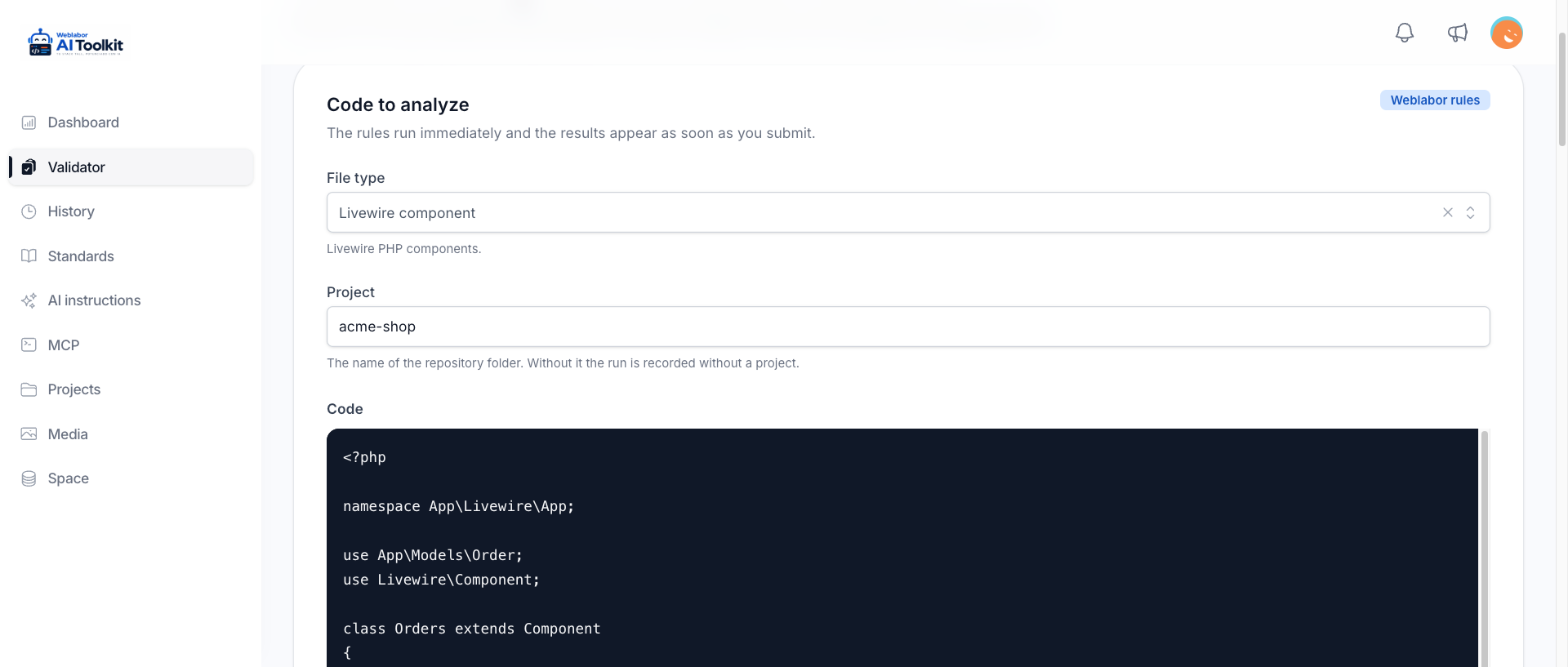
Analyse a file without installing anything
Paste the code, say what kind of file it is, and read the findings on the spot. It is the same analyzer your AI client calls, so trying it costs nothing more than a browser tab.
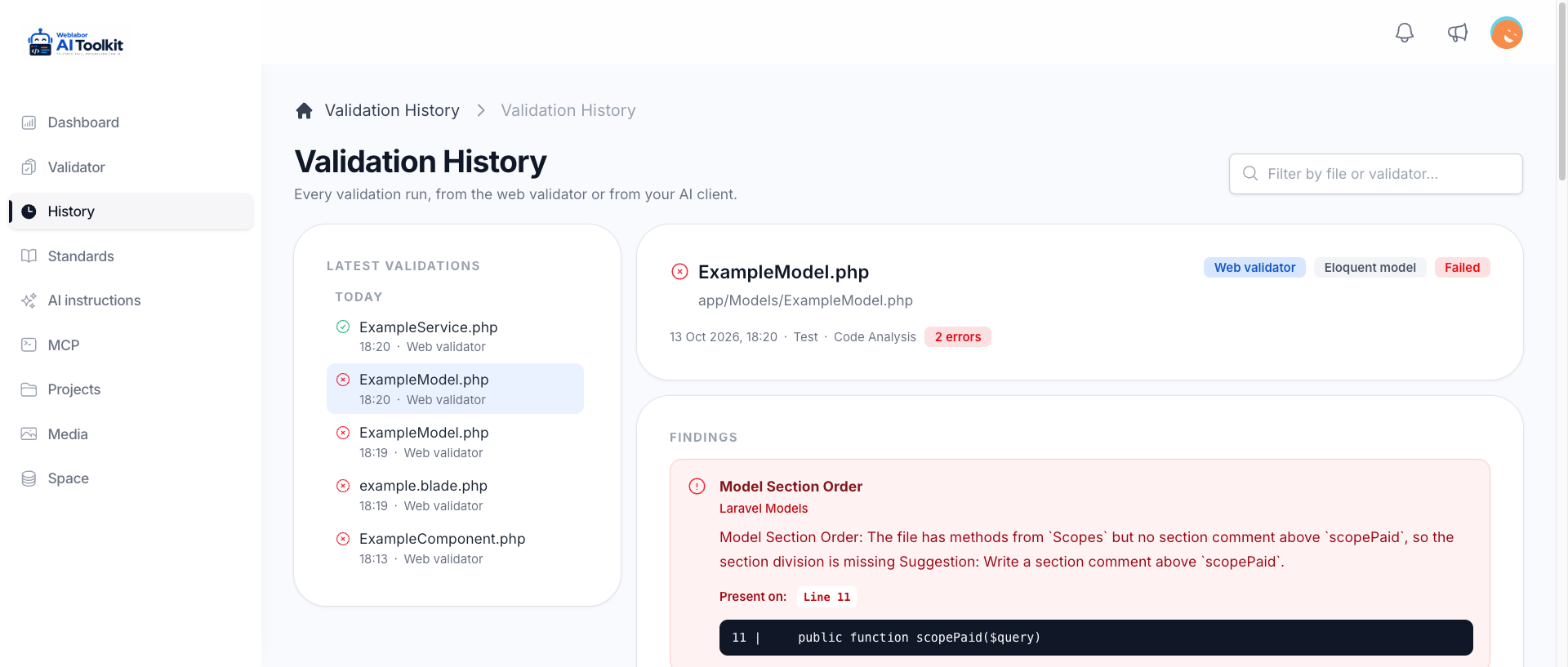
Every run is kept, with the code and the findings
Go back to any analysis and see what was checked, which rules ran, what each one said, and how earlier runs of that same file went. An argument about whether something was flagged has an answer.
The analysis history →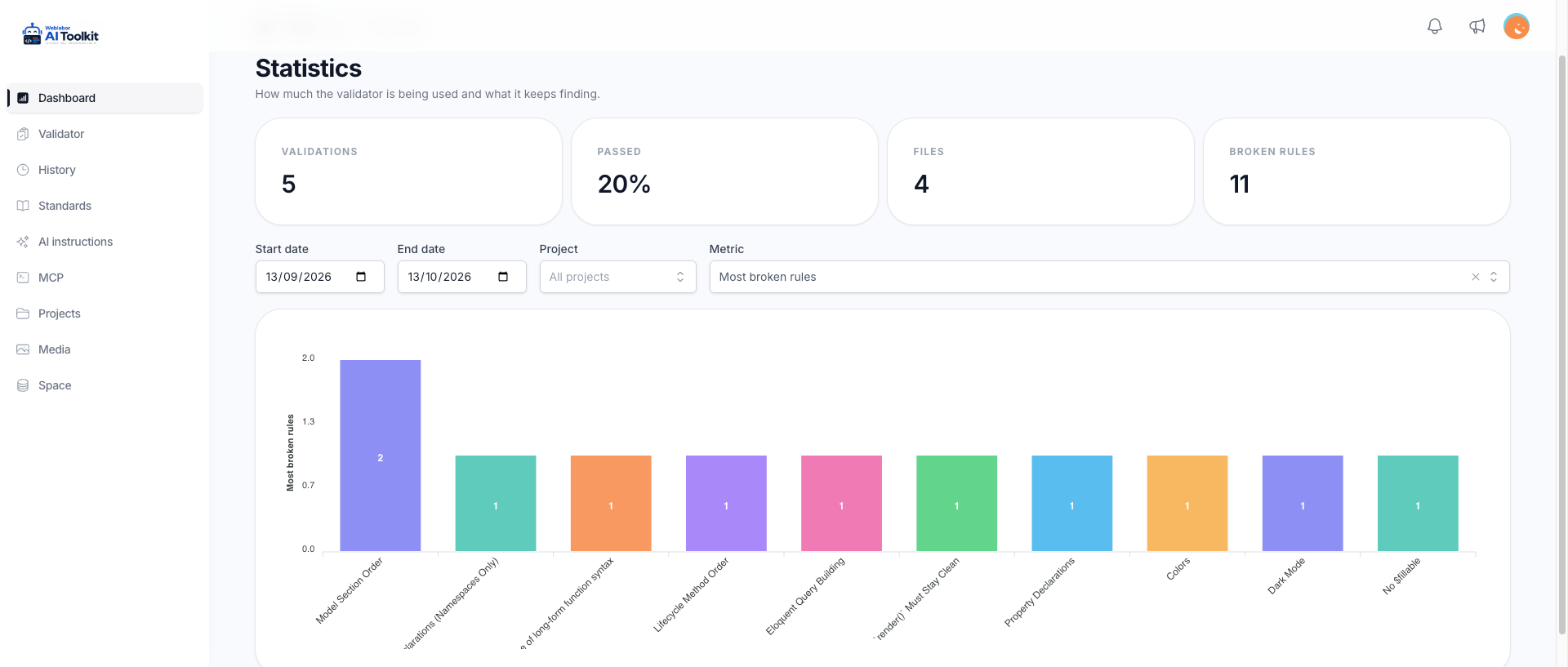
See where your code keeps breaking the rules
Runs over time, how many passed, which rules break most often, which file types and where the runs came from. It is what tells you which rule to teach rather than repeat.
Every guide to the analyzer →Every run is signed to somebody
Each analysis records the account behind it and whether it arrived from the browser or from an AI client, so the history reads as a record of the team rather than a pile of results.
Every guide to your account →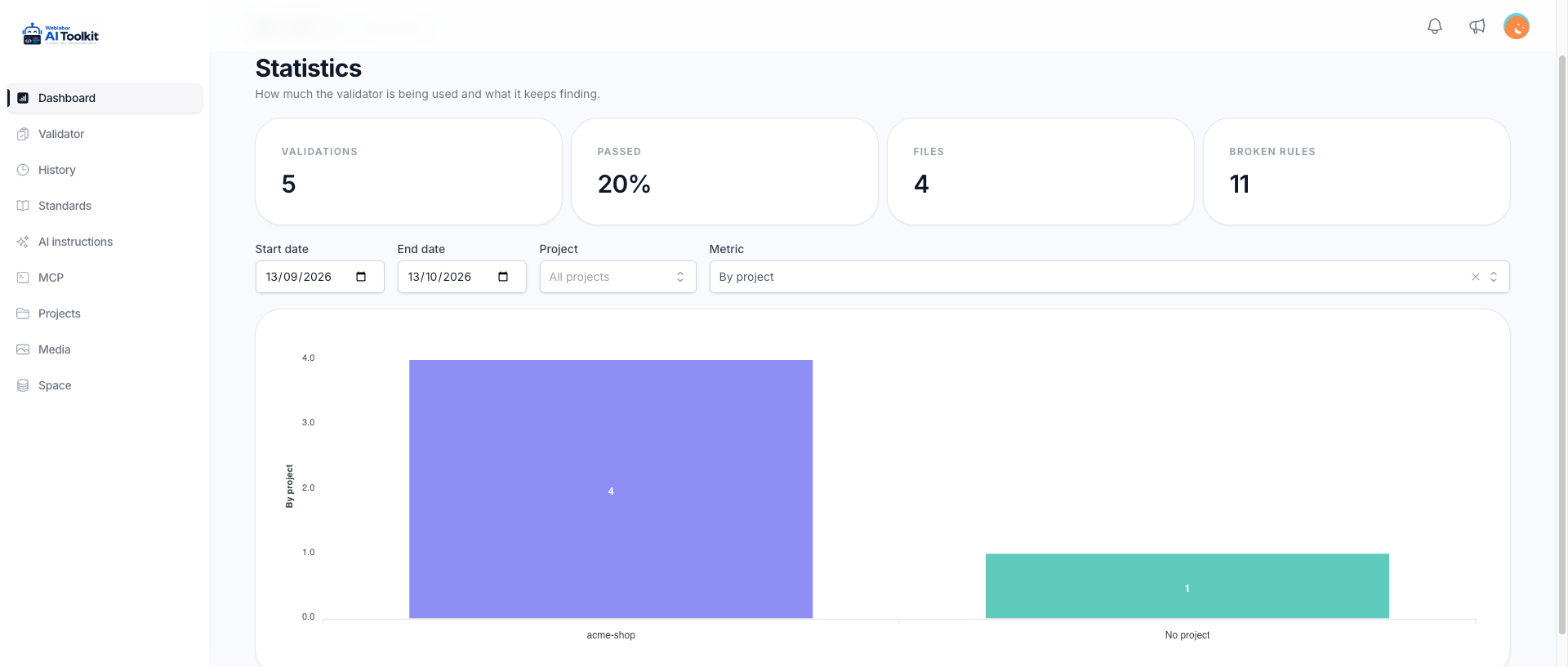
See how much each project is analysed
Each run keeps the project it came from, whether your AI client sent it or you wrote it in the browser. Group the dashboard by project or keep the figures of one, and runs that named none gather under No project.
How to analyse a file →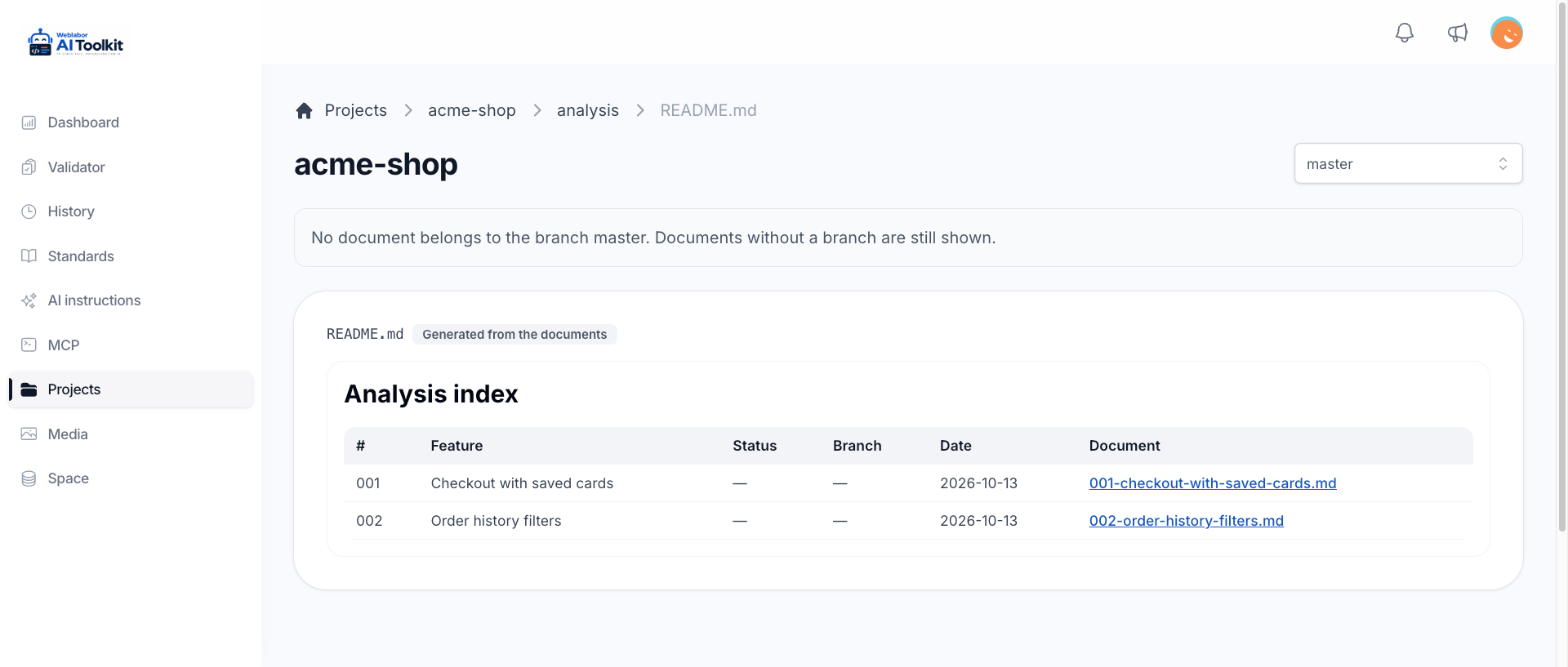
Your plans live in Projects, not in your commits
The plans, analyses, vision and pending findings your assistants write for a repository are kept in its project, named after the repository folder. Choose a branch to see its plans, read every document as it was written, and the index of the analysis folder is built for you. Every computer with your token sees the same documents. Your assistant can also upload the files a command works from, such as a brand manual or a logo, and those in the identity folder are kept exactly as they arrived.
Your projects and their documents →Each folder explains itself, and the listing stays beside you
A folder with an index.md or a README.md opens it on the right of its listing, and the analysis folder shows its generated index there. Open a document and the listing of its folder stays on the left in a narrow column with it marked, and a .. row takes you up one folder, so the next file is one click away. A link to another document opens it from the folder it is written in, and the images of the folder open in a viewer you step through without leaving the page.
Your projects and their documents →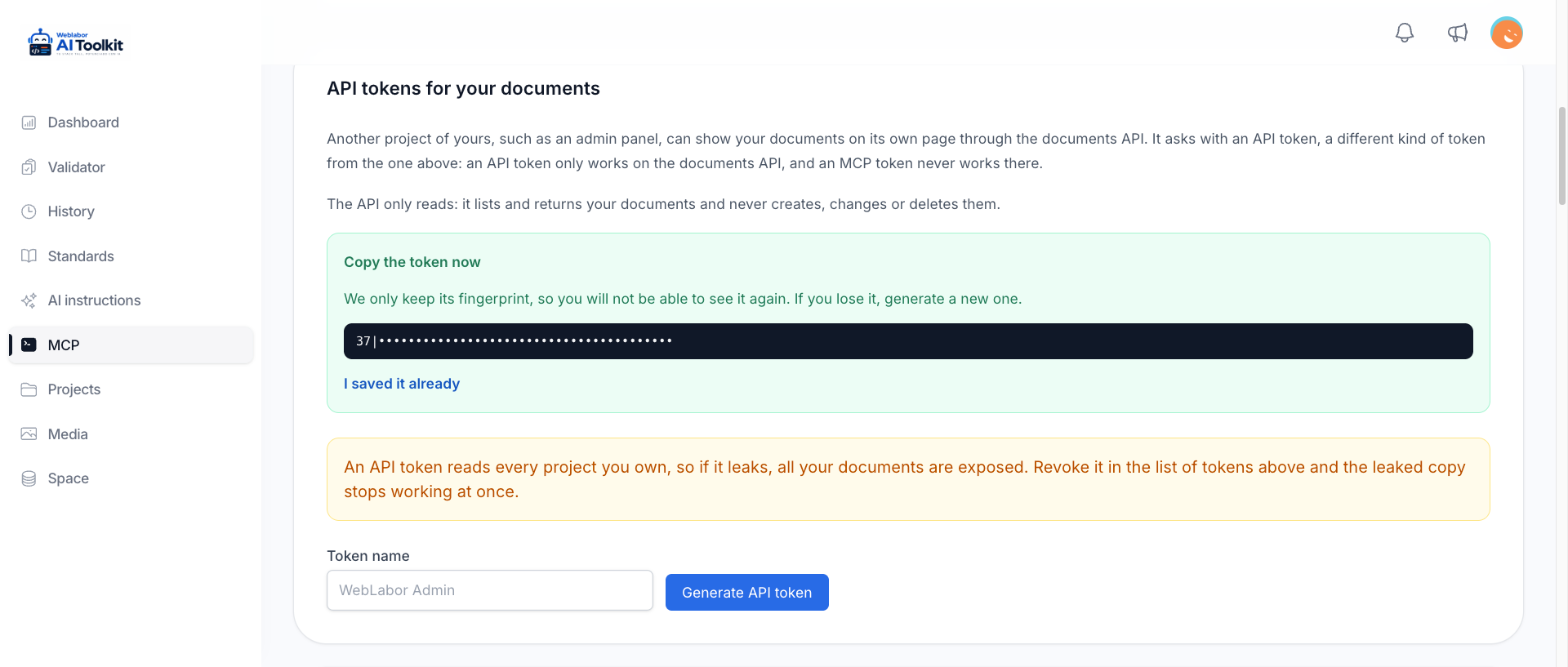
Show your documents on a page of your own
Another application of yours asks for a document by project and path and gets it back ready to show, in Markdown and in the same HTML the viewer prints. It asks with an API token, made for this API alone: the API only reads, and the token never works on the MCP server.
Show your documents in another project →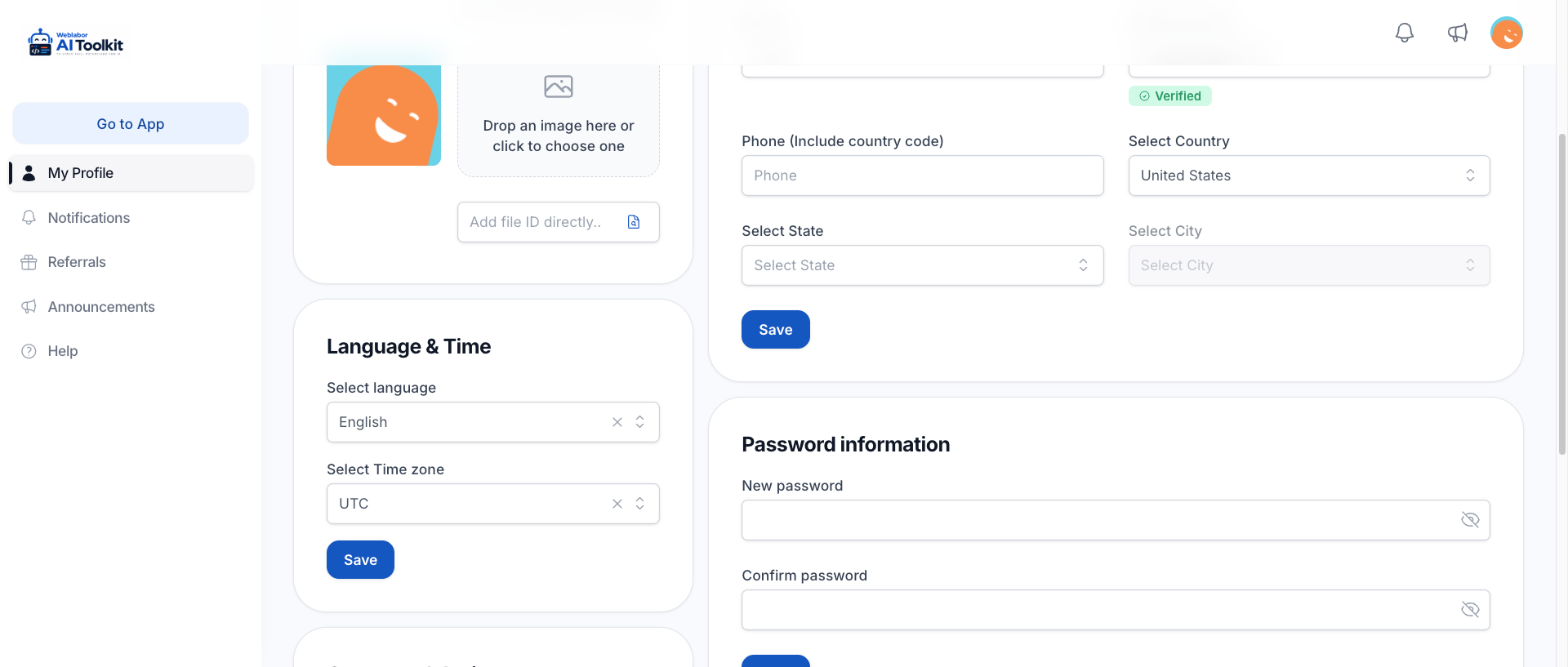
Read what your assistants are told
The commands and the agents are readable in the panel, in the language your account is set to. Someone who did not set them up can still see what they ask for before trusting them with a task.
Your profile and your language →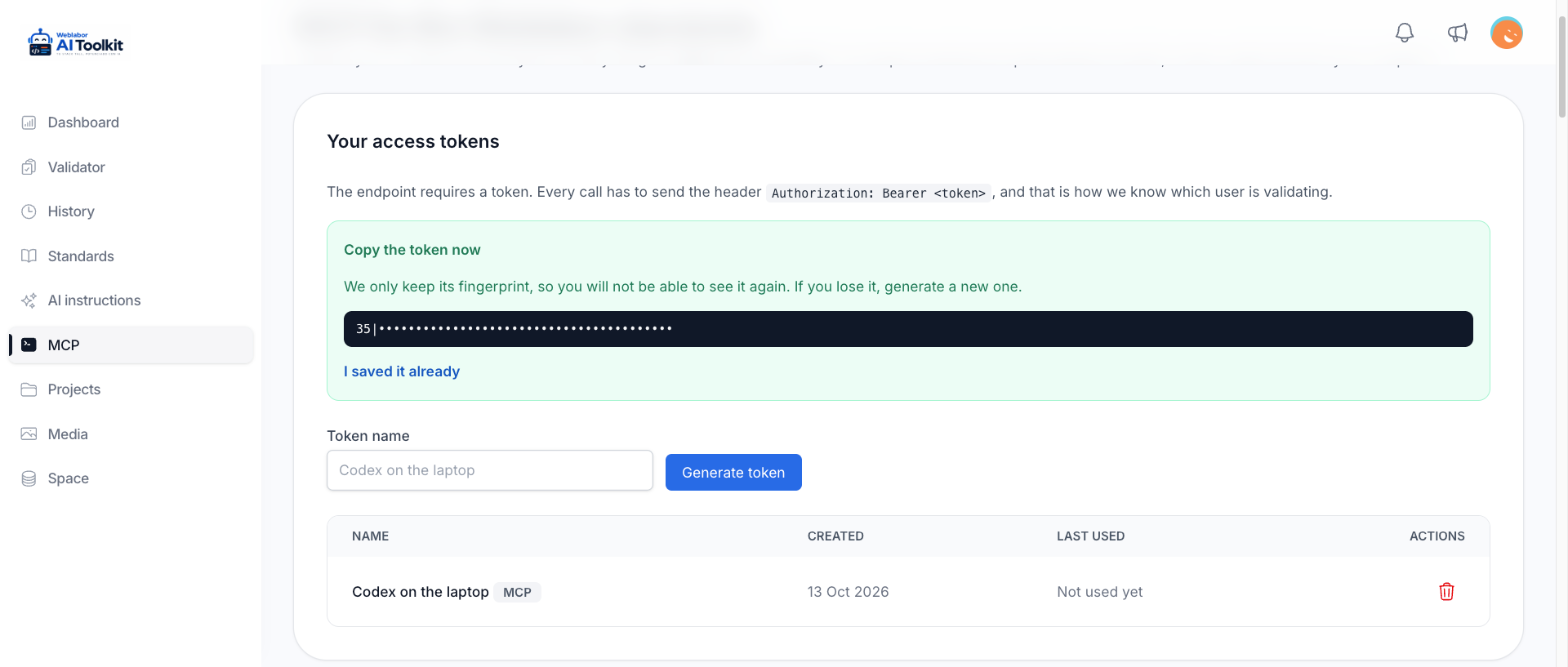
Your first token in a minute
Generate a token, copy it once, and your client is one setting away from working. Only its fingerprint is stored, so it cannot be read back out afterwards.
How to get your token →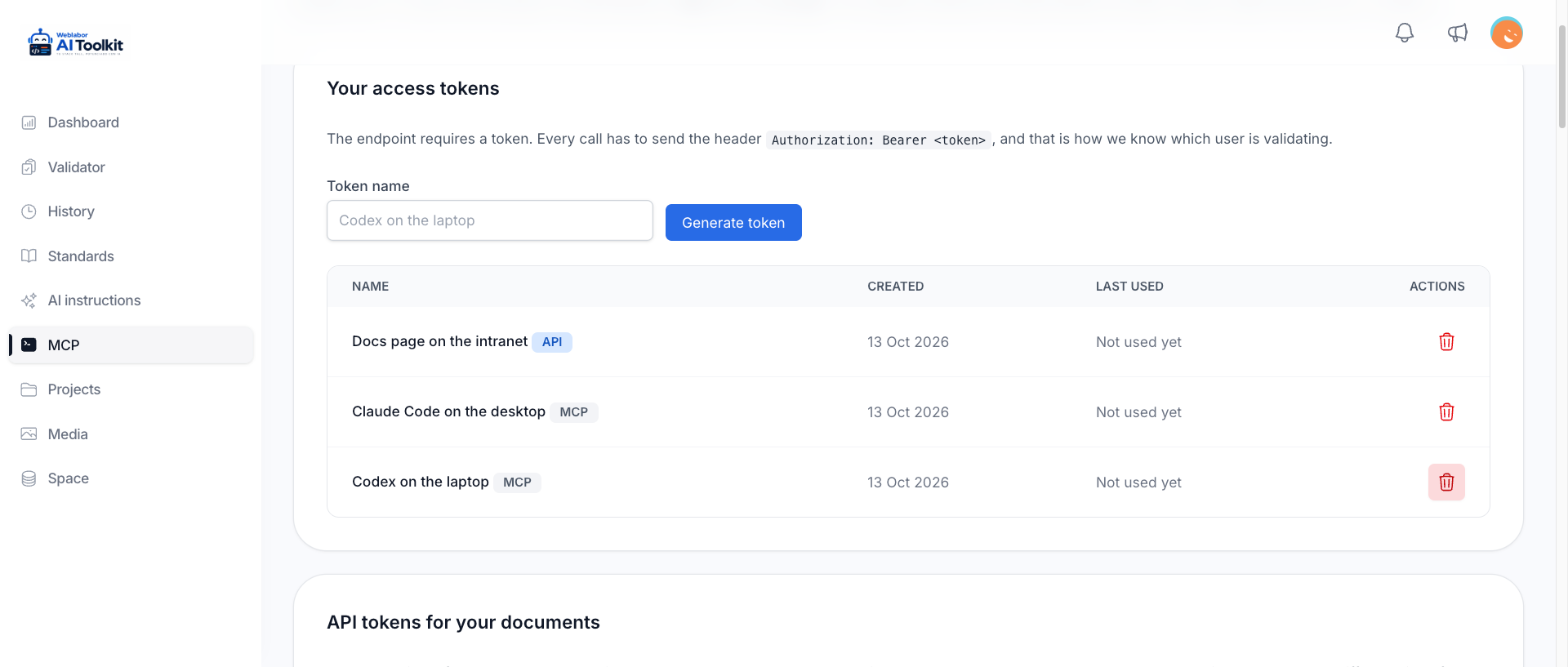
Revoke a token the moment it leaves your hands
Revoking takes effect straight away and touches nothing else: the client using that token loses access, every other one keeps working, and nobody changes a password over it.
How to keep your tokens safe →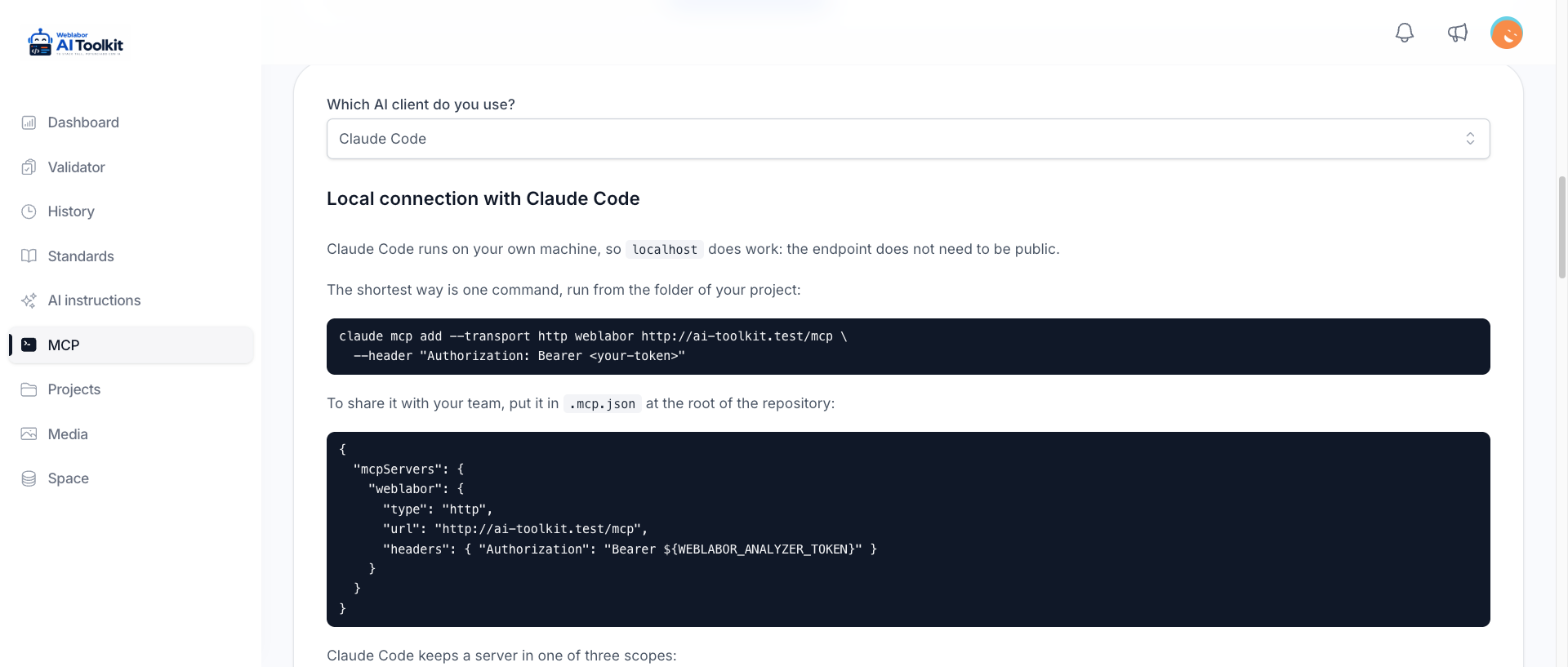
Connect Claude Code and let it check its own work
The panel shows the address and the header Claude needs, with the warnings that save you the first hour. From then on it reads the standards and validates what it writes.
How to connect Claude Code →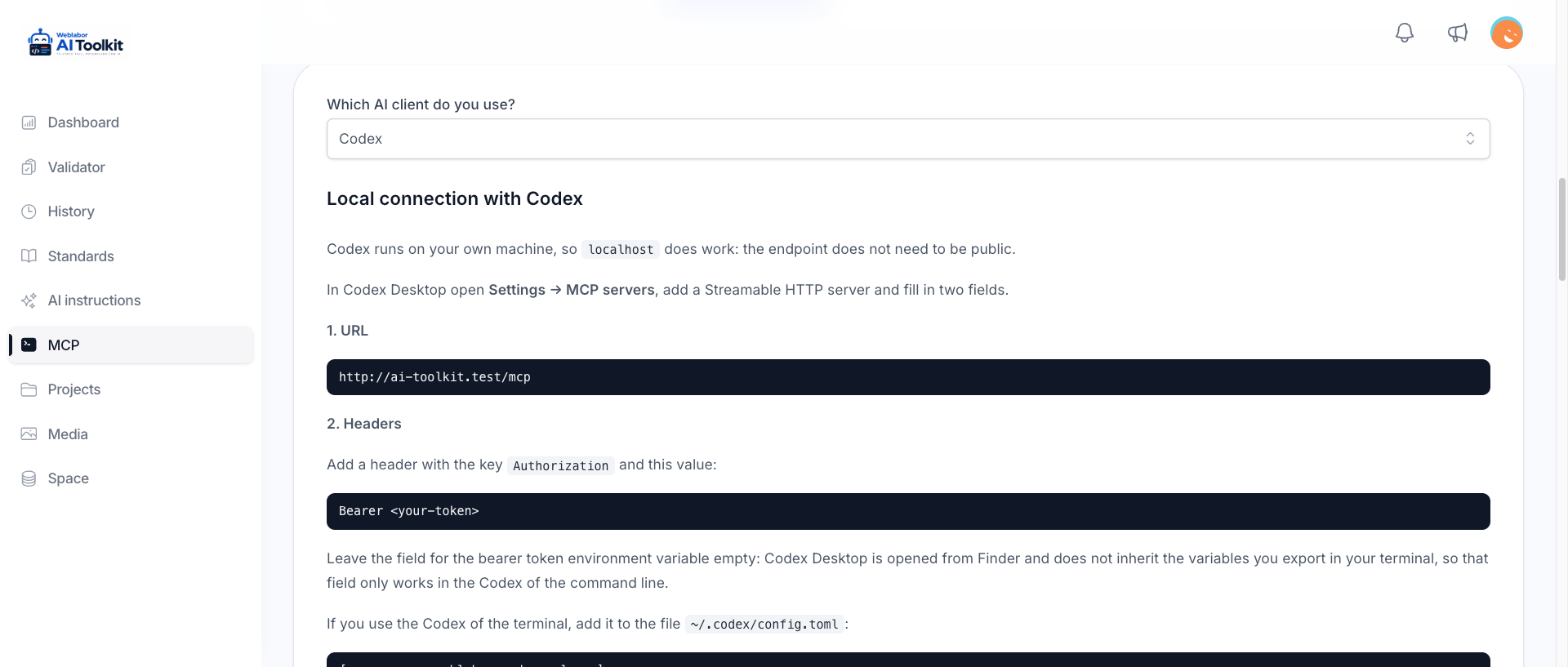
Connect Codex to the same rules
The same address and the same token, from the desktop app or from the terminal. The panel shows the configuration for both, including where the token should live so it is not written into a file.
How to connect Codex →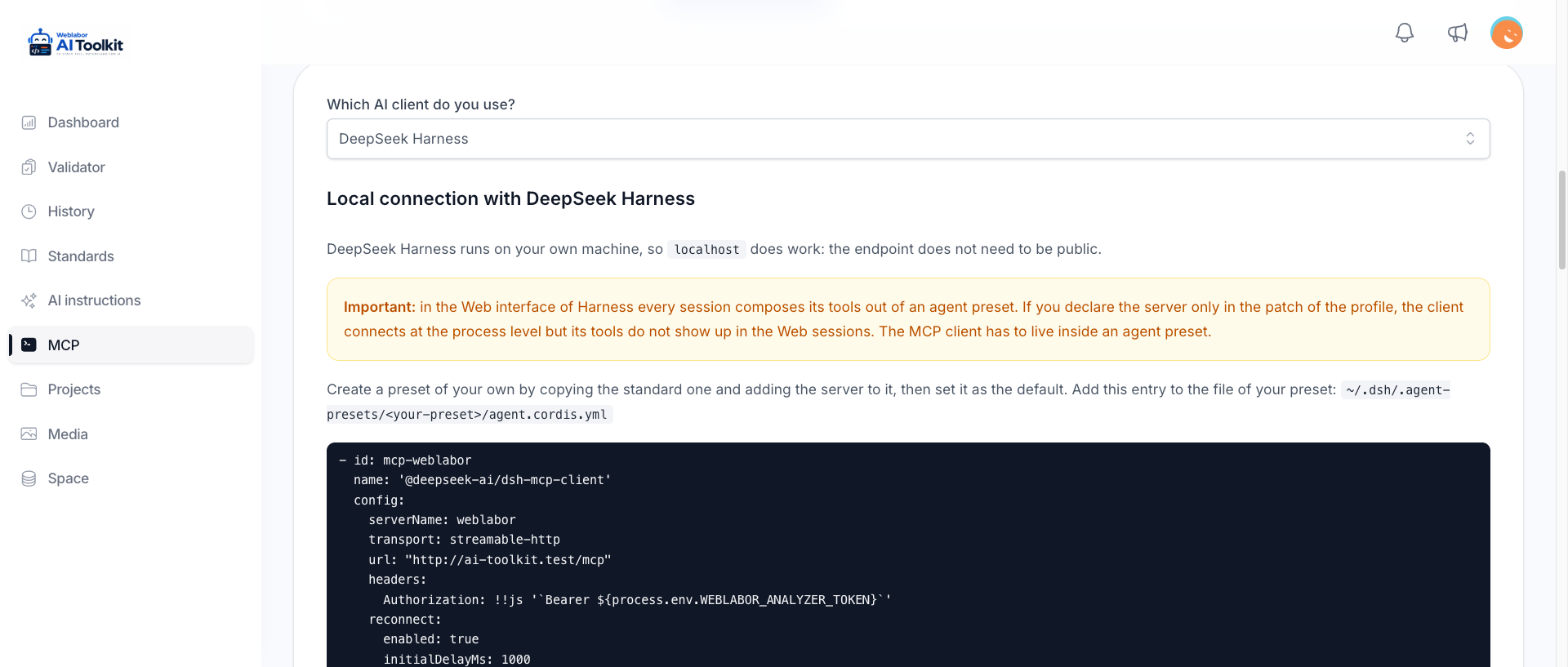
Connect DeepSeek Harness on your own machine
Harness runs locally, and the panel gives it the configuration that actually brings the tools into a session — which is the part that is easy to get almost right.
How to connect DeepSeek Harness →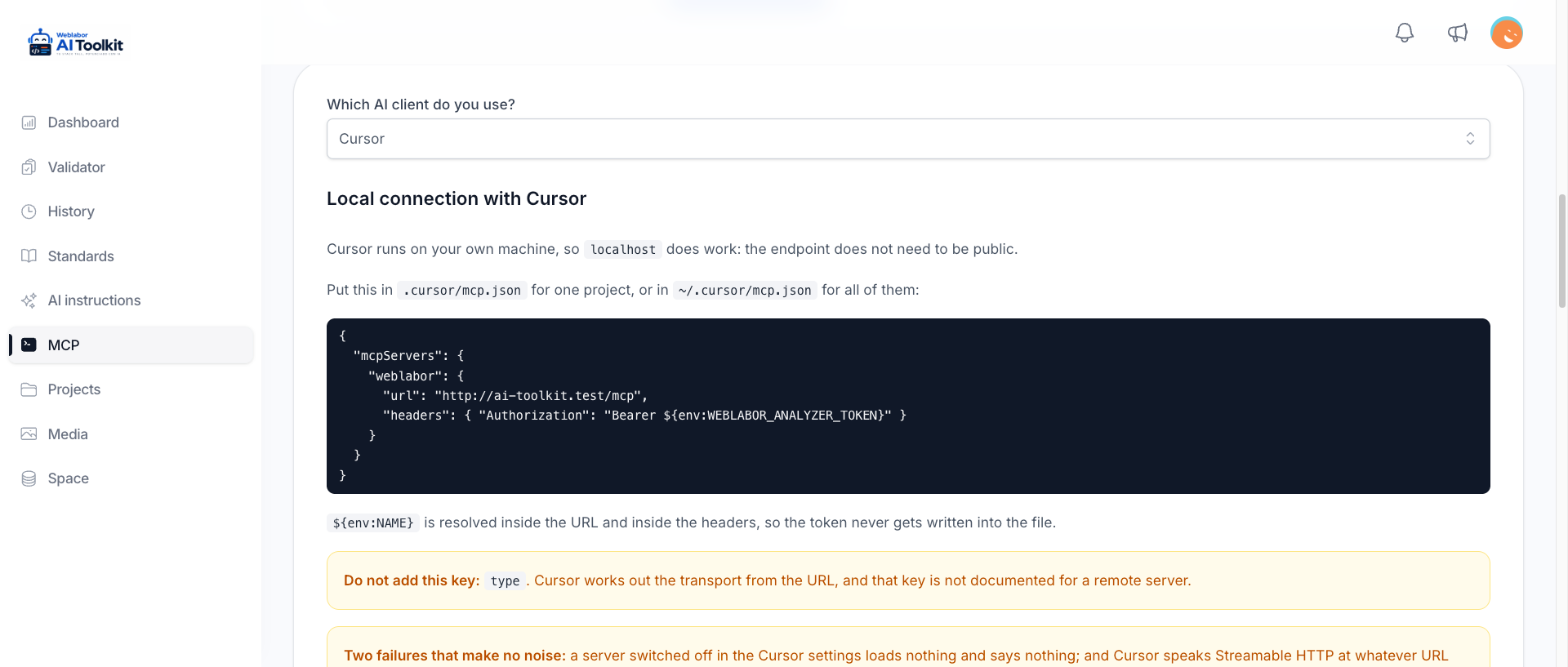
Or the editor you already have open
Cursor, VS Code with Copilot, Gemini CLI and the Claude connector reach the same analyzer with the same token. Each one has a guide with its own configuration and the mistake that makes it fail quietly.
Every client we document →